FAQ & Troubleshooting
Common PikkoBot-specific issues and fixes. For issues not listed here, email hello@pikkobot.com.
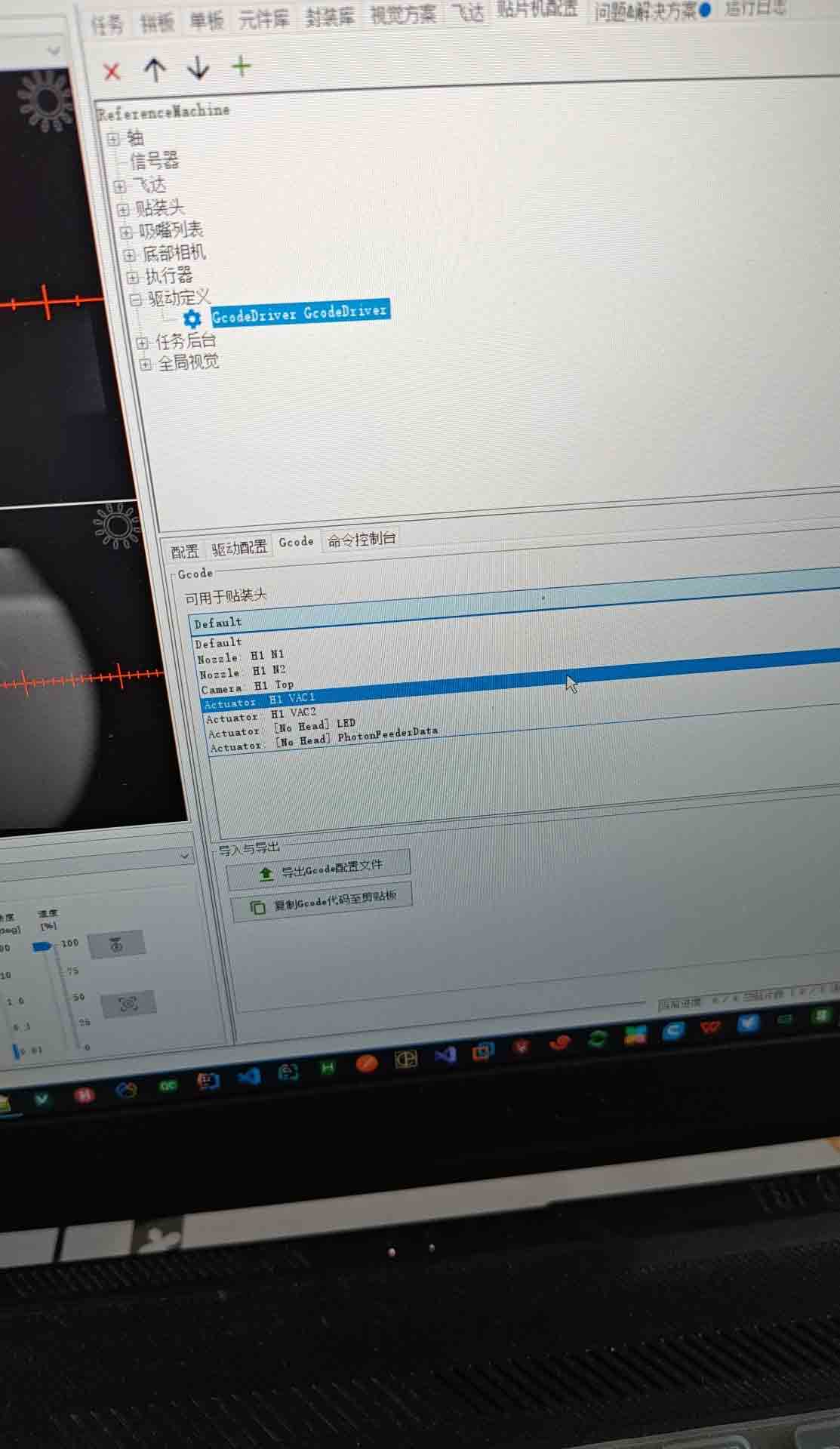
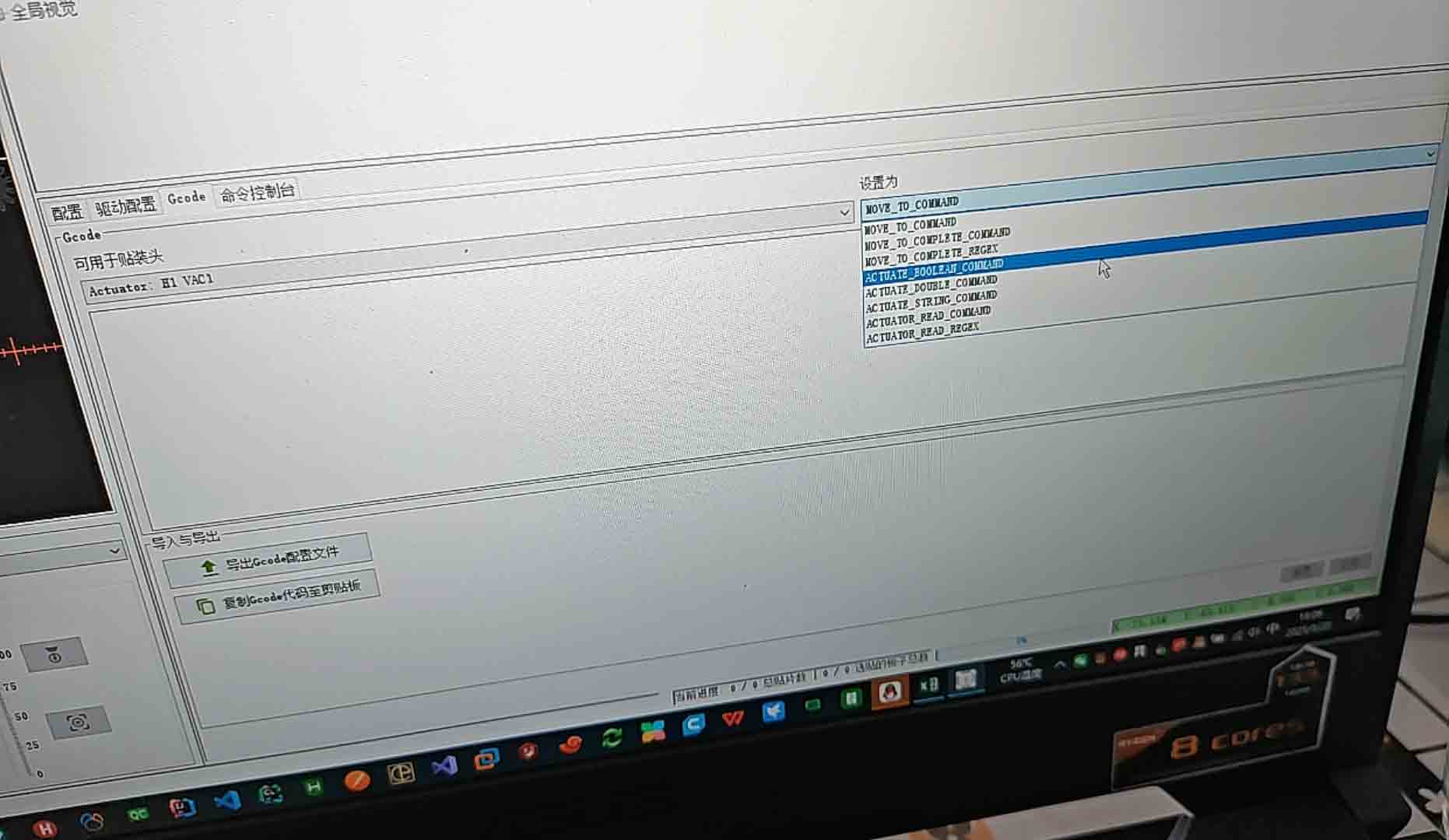
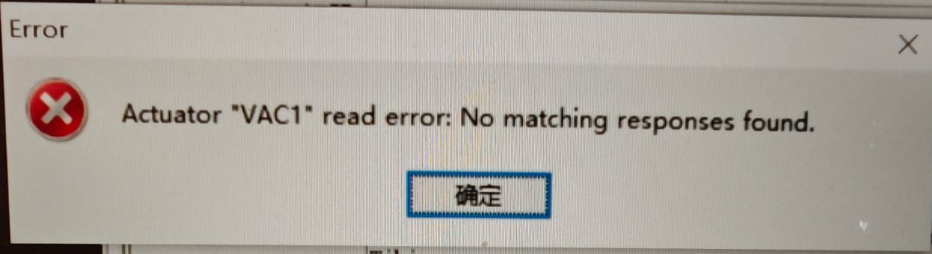
Solenoid Valve Won't Open in OpenPnP
- Symptom: in the Debug page, the air pump and solenoid valves turn on normally, but during a job the valves don't open.
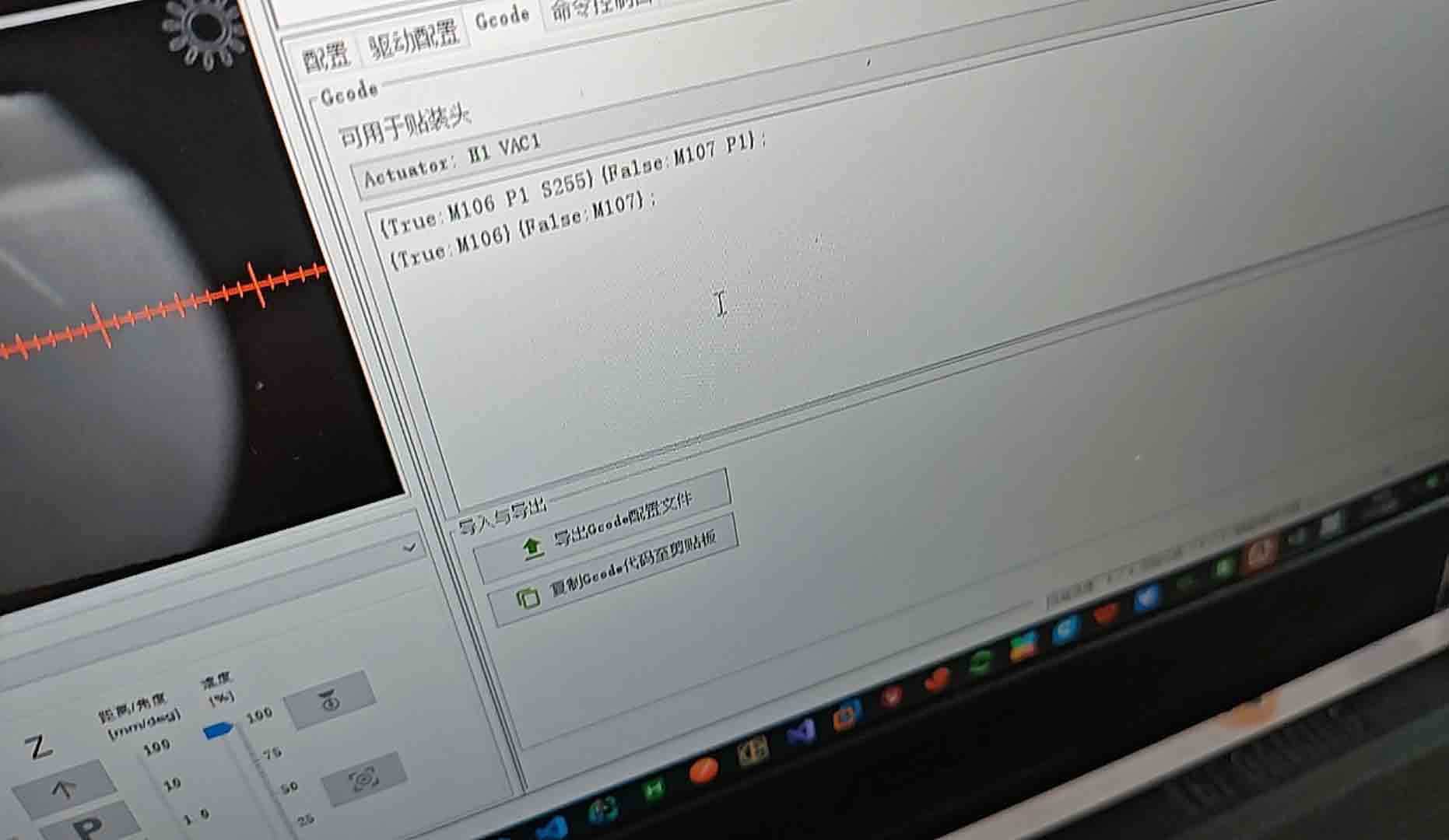
- Cause: the actuator G-code uses a value of 180 for the solenoid, but the firmware expects 255 to fully open.
- Fix: Machine Setup → Actuators → find VAC1 and VAC2 → change S180 to S255 for both → save and test.
Pressure Sensor Error / Pop-up Warning
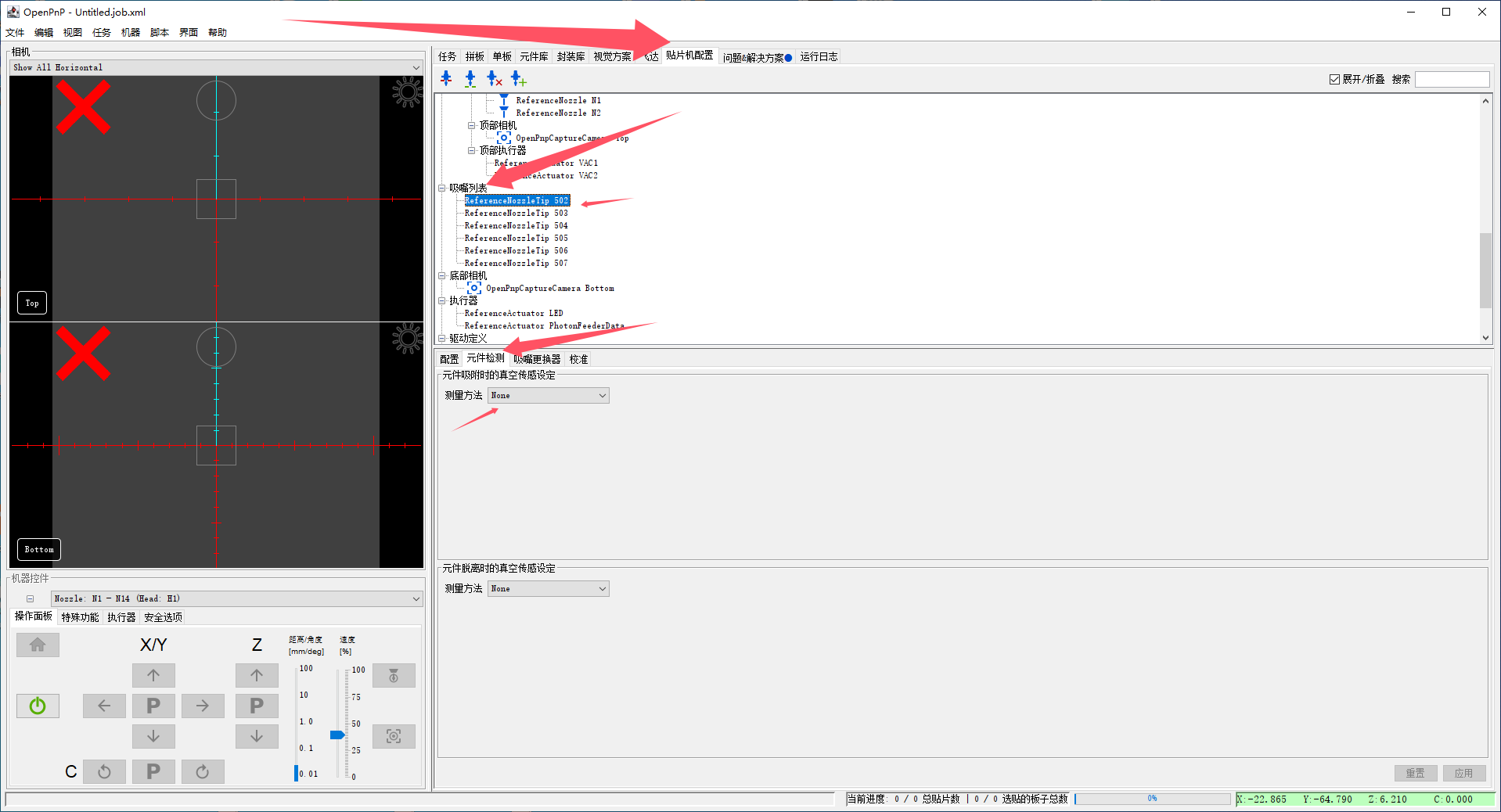
- Symptom: OpenPnP shows a pressure sensor failure or vacuum pressure out-of-range error.
- Cause: PikkoBot v4 ships without a vacuum pressure sensor and uses bottom-camera vision instead; OpenPnP's default sensor check always fails.
- Fix: Machine Setup → Heads → Nozzles → Nozzle 1 → find Vacuum Sensing → set Method to None → repeat for Nozzle 2.
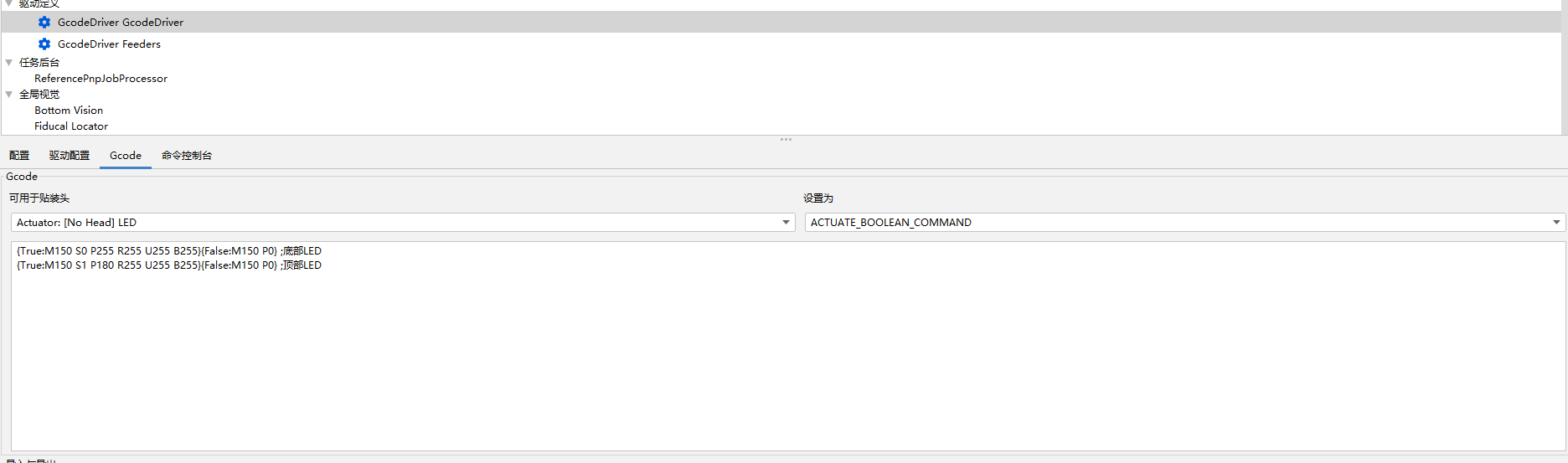
Controlling Top and Bottom LEDs Separately
Send G-code manually via Machine → Send G-code:
M150 S 0 ; Top LED off (S0 = top)
M150 S 1 ; Bottom LED off (S1 = bottom)
M150 P 255 S 0 ; Top LED full brightness
M150 P 255 S 1 ; Bottom LED full brightness
M150 P 128 S 0 ; Top LED half brightness
The S parameter selects the LED strip; P sets brightness (0–255).
Machine Makes Grinding Noise During Homing
- Symptom: grinding or skipping sound when homing an axis.
- Likely causes: motor current too low; axis obstructed (snagged cable, debris); limit switch not triggering.
- Fix: check nothing is physically blocking the axis; check limit switch cables are connected; if it moves freely by hand but grinds under power, motor current may need adjustment — contact support.
Debug vs OpenPnP Behavior Mismatch
- Symptom: things work in the hardware Debug page but behave unexpectedly in OpenPnP.
- Cause: OpenPnP sends G-code through its own actuator layer with different parameters.
- Fix: compare the G-code in Machine Setup → Actuators with what the Debug panel sends, and update the actuator G-code to match working values.
Support
- Email: hello@pikkobot.com
- Community: Discord and forum links coming soon